
How to Split a PDF Into Separate Pages
Pull one page or every page out of a PDF with Cepe Paper PDF tools — split by each page or by a page range, then save the new files.
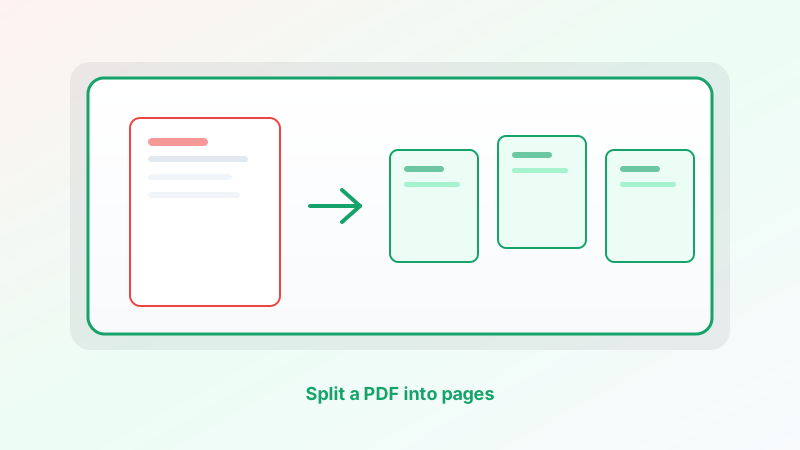
A 40-page PDF is a poor attachment when the other person only needs page 7. Splitting means: new files that contain only the pages you chose, without rewriting the content.
You do not need Acrobat for that. Cepe Paper’s PDF tools include Split — each page as its own PDF, or a page range.
Open Split
Open Cepe Paper in the browser or the desktop app. Open PDF tools and choose Split.
Pick the PDF. If it is password-protected, unlock it first. If the file will not open on its own, split will not fix it.
Decide what you actually need. “Every page” and “pages 3–5” are different jobs.
Each page as its own PDF
Use each page as its own PDF when you want one file per page: invoices in a batch, scanned forms, or slides someone exported as a single PDF.
You will get as many files as there are pages. Name the folder before you start so “page-12.pdf” does not land in Downloads next to last week’s batch.
Open two or three outputs and confirm they are the pages you expected. A cover that was page 1 should be a one-page file, not a blank.
Split a page range
Use page range when you need a slice: the appendix, the signature block, or “just the exhibits.”
Set the start and end page. Page numbers are the PDF’s numbers — page 1 is the first page of the file, even if the printed footer says “ii”. If you are unsure, open the PDF and count from the front.
Save the new file. Open it and check the first and last page. If you wanted 3–5 and you got 2–6, split again. It is cheaper than sending the wrong exhibit.
After the split
Keep the original PDF. Split creates new files; it should not be your only copy of the packet.
If you split out pieces you now want as one attachment (cover plus signature, no appendix), Merge those pieces in the same PDF tools.
If a single page is still too large to email, use Compress. If someone must sign only the extracted pages, send that smaller file with Cepe Sign.
When split is the wrong tool
If you need to change a sentence on page 4, edit the PDF or the source document. Split does not make the page more editable.
If the “pages” you want are still in Word or a deck, export to PDF first. You cannot split a .docx with a PDF splitter.
If you only need to hide a page from a recipient, splitting it out is clearer than hoping they will not scroll. Do not rely on “they will skip the middle.”
A short workflow
Open PDF tools in Cepe Paper. Choose Split. Use each page for a full burst, or a range for a slice. Open the new files and check the first and last page. Keep the original.
That is how to split a PDF into separate pages: take the pages you need, leave the rest in the source file, and send only what belongs in the next email.