
How to Replace an Image in a PDF
Swap a logo, photo, or chart without rebuilding the whole page. Edit the Cepe Paper source when you can, or replace the picture in PDF tools and keep the same frame.
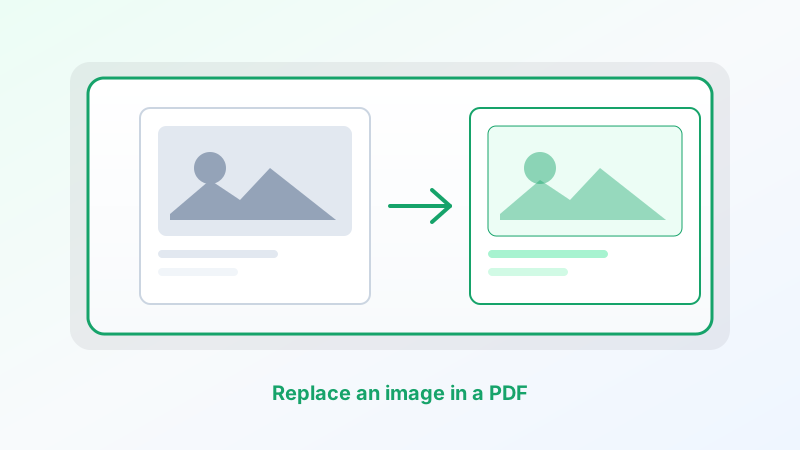
A PDF with last year’s logo is still the same proposal — until someone notices the picture. You should not have to redesign the page to drop in a new photo.
Acrobat can replace an embedded image on a finished page. You do not always need that. In Cepe Paper, the clean path is to swap the picture in the original document or deck and export a new PDF. When the PDF is the only copy, replace the image in PDF tools and keep the same frame so the layout does not jump.
Why the picture is locked
A PDF stores an image as an object in a box: width, height, position. The rest of the page is drawn around that box. If you drop in a taller photo, text can shift. If you drop in a much wider one, the crop looks wrong.
The job is not “insert any picture.” The job is “fill the same rectangle with a better file.”
Best option: change it in the source, then export
If you built the file in Cepe Paper, open the document or presentation that owns the layout. Select the image. Replace it with the new file. Export a PDF.
That is the most reliable swap. You still control crop, size, and wrap. The PDF is only the travel copy.
Use this when you have the original, when the picture sits next to a caption you might also update, or when you are changing a logo that appears on more than one page — fix it once in the source, export once.
If the PDF is the only file
Open the PDF in Cepe Paper’s PDF tools. Select the image you want to change. Replace it with a file that matches the old picture’s job: same subject, similar shape.
Keep the aspect ratio close to the original. A square logo in a square frame stays tidy. A wide banner in a tall slot will letterbox or crop.
Use a file sharp enough for the printed size. A tiny thumbnail stretched into a hero slot will look soft. You do not need a billboard file for a small icon.
Proof the page after you export. Check that nearby text, page numbers, and other pictures did not move. If they did, the new image is probably a different shape — crop it to match the old frame and try again.
Logos, photos, and charts
Logos should stay the same size. A bigger mark will collide with the title. Use a transparent PNG when the page has a colored background.
Photos should fill the frame without stretching faces. Crop before you import if the new shot is a different orientation.
Charts are often safer to rebuild in spreadsheet or presentation mode, then export. Replacing a chart as a flat picture works when the numbers are already final. If the data will change again, own it in a sheet.
What this will not do
Replacing an image does not unlock a scan into a fully editable design. It does not promise print-shop color management. It will not silently update every copy of a logo that was flattened into the page as part of a background.
For certified documents, press-ready mechanicals, or a client who will reject a one-millimeter crop, use a specialist PDF tool.
A short workflow
Open the Cepe Paper source if you have it, replace the picture, export. If you only have the PDF, open PDF tools, swap a same-shape image, and proof the page. Save to Cepe Cloud if you will finish the export on another device.
That is how to replace an image in a PDF: keep the frame, change the picture, and treat a full redesign as a new document — not a stretched photo on a finished page.