
How to Create a Company Letterhead
Build a simple, reusable letterhead in Cepe Paper: logo, legal name, contact line, consistent margins — then save it as the template for every letter you export to PDF.
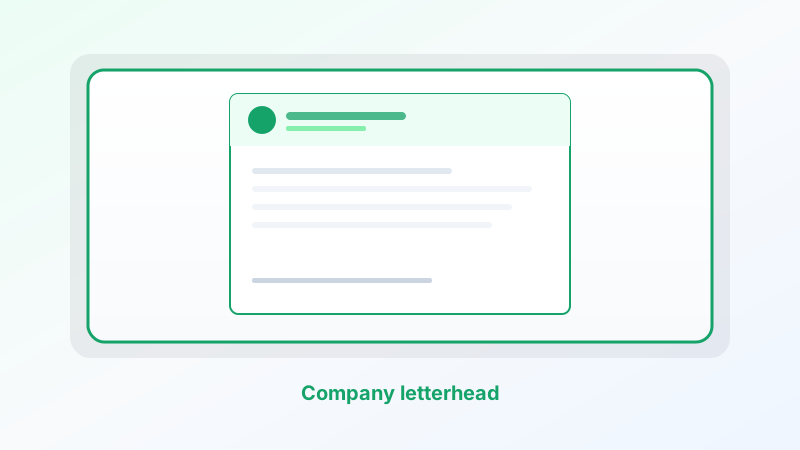
A letterhead is the frame around official words. It should identify the company in one glance and stay out of the way of the letter.
You do not need a print shop file to start. Create it once in Cepe Paper as a document, save that file as your master, and export to PDF when you send.
What belongs on the page
Put only what a recipient needs to trust the sender: logo or wordmark, legal company name, postal address, phone, and a public email or web address. Registration or tax numbers go here only if your market expects them on correspondence.
Keep the block compact. A letterhead that eats a third of the page is a brochure. Leave a clear body area so a one-page letter still fits.
Match the colors and type to how you already appear on invoices and the website. Inconsistency looks accidental.
Build it in Cepe Paper
Open a new document in the browser or on the desktop. Set margins you can live with on every page — not so tight that a printer clips the logo.
Place the logo at a modest size. A transparent PNG sits cleaner on white than a photo of a sign. If you replace the mark later, keep the same frame so the body text does not jump.
Set the company name and contact line in a readable size. Align them with the logo (left stack or logo left / text right). Avoid putting essential text only inside the image. If the logo fails to print, the name should still be there as type.
Add a thin rule under the header if you want a visual stop. Repeat a lighter line or address in the footer if you need a second page to still look official — keep the footer smaller than the header.
Type a sample letter underneath. If the first paragraph feels cramped, shrink the header, not the type in the body.
Save a master, not a one-off
When the header looks right, save the project as your letterhead master. Duplicate it for each new letter. Do not rebuild the logo every Monday.
If your team shares files, put the master on Cepe Cloud so people are not emailing “letterhead-final-v3.” Business workspaces help when more than one person sends official mail.
Export a PDF of a blank letterhead only if you truly need a plate for someone else. Day to day, write in the document and export the finished letter.
Check it like a client will
Open the PDF. Print one page if you print at all. Check that the logo is sharp, the address is correct, and nothing sits in the unprintable edge.
If a second page appears, the header is too tall or the sample body is long — fix the master, not one export.
For signatures on official letters, finish the text first, export, then use Cepe Sign if the other party signs online. Do not treat a decorative script font in the header as a legal signature.
What to skip
Skip a watermark that fights the words. Skip six social icons. Skip a different header on every letter “to keep it fresh.”
Skip locking the only copy as a PDF you cannot edit. The address will change.
A short workflow
Open Cepe Paper. Place logo, name, and contact line. Leave room for the letter. Save the master. Duplicate, write, export PDF. Proof one page.
That is how to create a company letterhead: one quiet frame, one source file, and every letter after that is just the words.